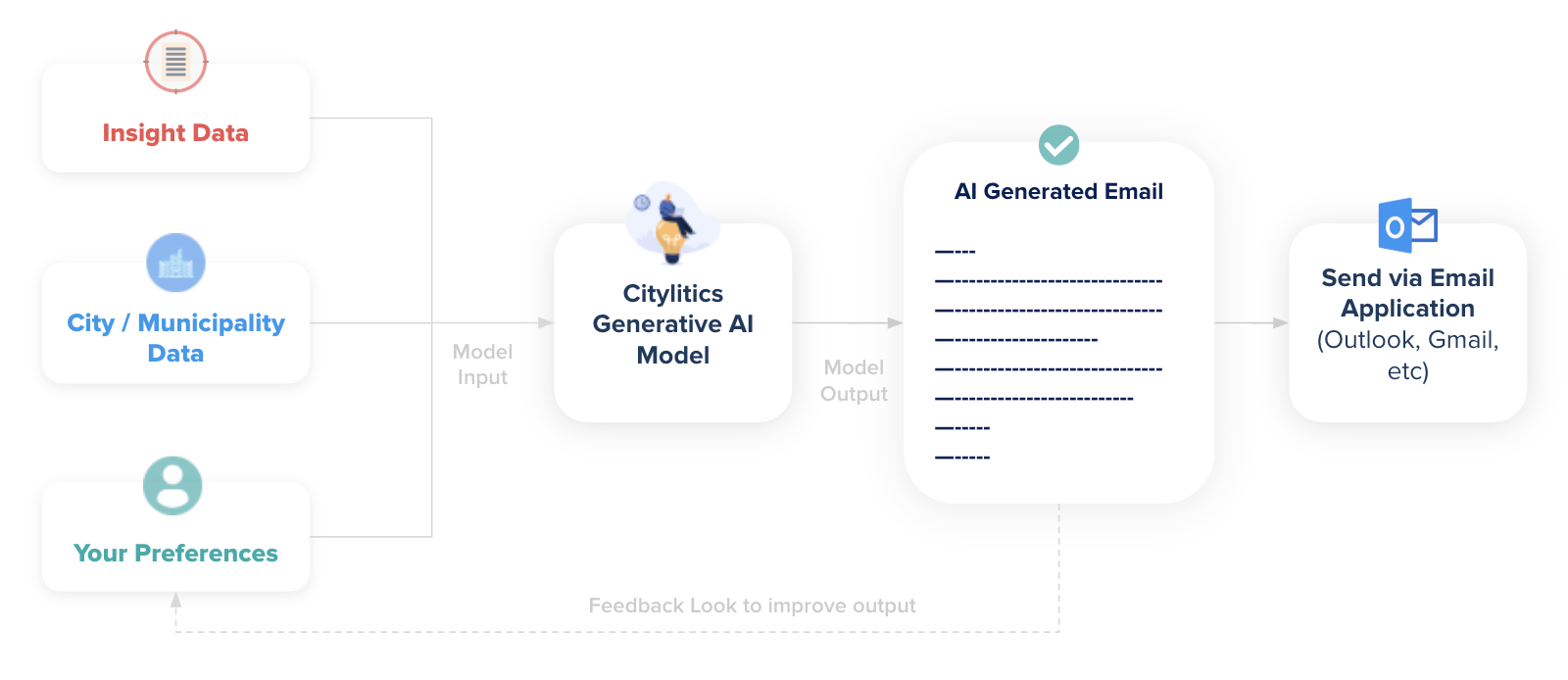
This tool helps you create customized messages based on opportunity insights, your company’s expertise, and past project examples — all in just a few clicks.
The workflow includes:
-
Navigating from your Opportunity List View to a Single Opportunity View
-
Opening the AI Assistant
-
Completing the Input Form (pre-populated with editable presets)
-
Reviewing the AI-generated email
-
Optionally editing the content
-
Sending the final email through your default desktop email client (Outlook, Apple Mail, etc.)
What is the AI Email Recommendation Assistant?
The AI Email Recommendation Assistant analyzes the opportunity’s key details — including project information, indicators, and timing stage — to identify the core infrastructure challenge the city is looking to solve. It then crafts a narrative that showcases how your company’s expertise, relevant past projects, and proven solutions directly align with that need, resulting in a personalized and highly targeted outreach email.
For you, this means:
-
Faster outreach: No need to manually draft emails from scratch.
-
More relevant messaging: AI matches your company’s products, services, and past projects to the specific opportunity.
-
Improved personalization: Emails include the right city details and contacts with optional custom edits.
-
Easy handoff: Send using your preferred desktop email application.
How to Use the AI Email Recommendation Assistant
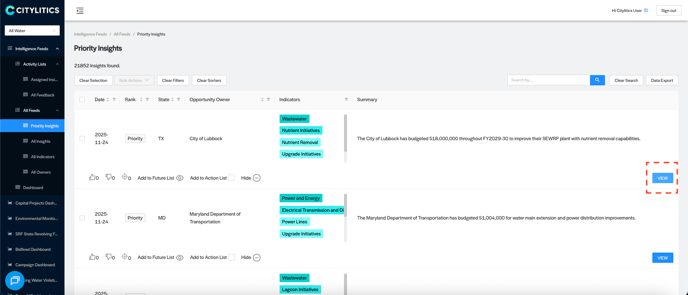
Step 1: Navigate to the Priority Insights List View
From the left-side navigation menu, select Intelligence Feeds → Priority Insights or Feeds Insights
You will see a list of all opportunities applicable for your selected market.
Step 2: Open a Specific Opportunity
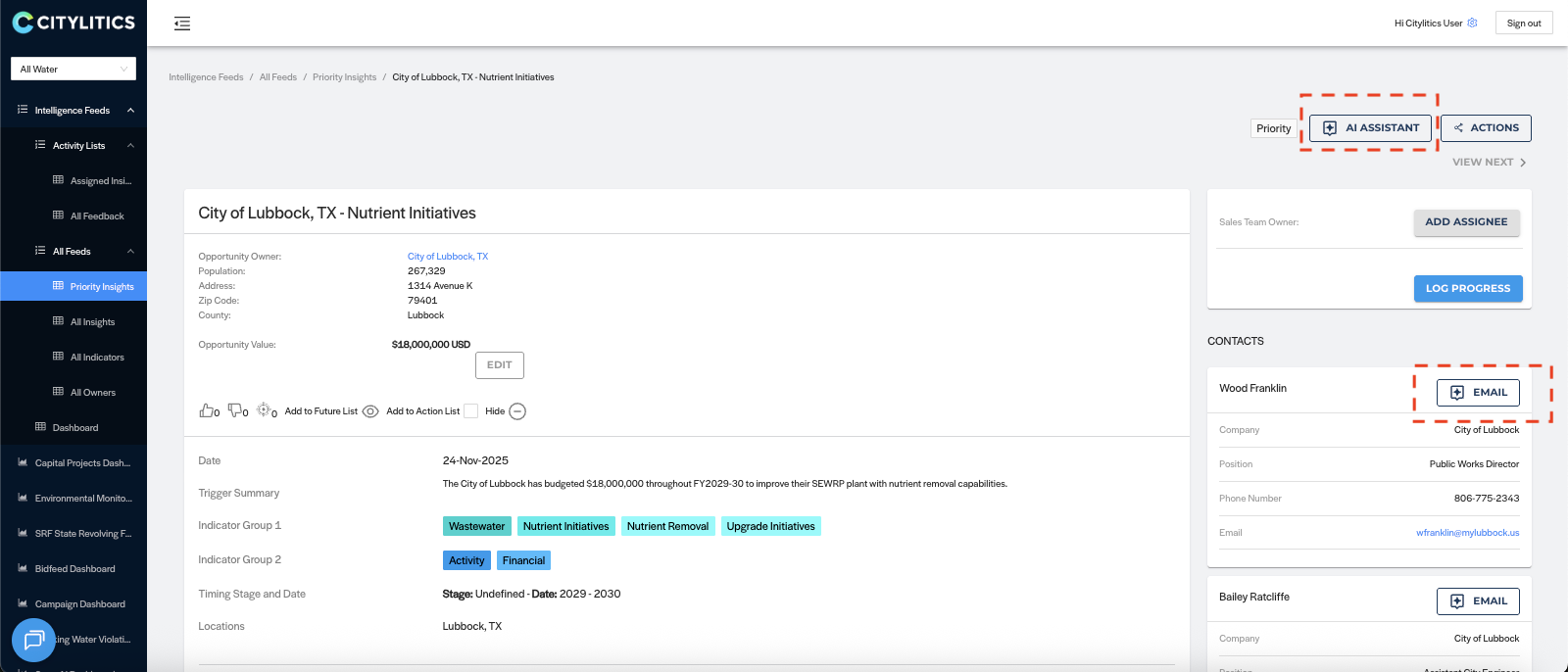
Select any insight from the list to open the Single Opportunity View.
From this view, you can launch the AI Assistant from two places:
-
AI Assistant button at the top of the opportunity
-
Email button beside a contact
Both actions lead to the same workflow; the only difference is that the Email button automatically selects the contact from which the workflow was triggered as the email recipient.
Step 3: Open the AI Email Assistant Input Form
Once the AI Assistant is launched, an input form will appear.
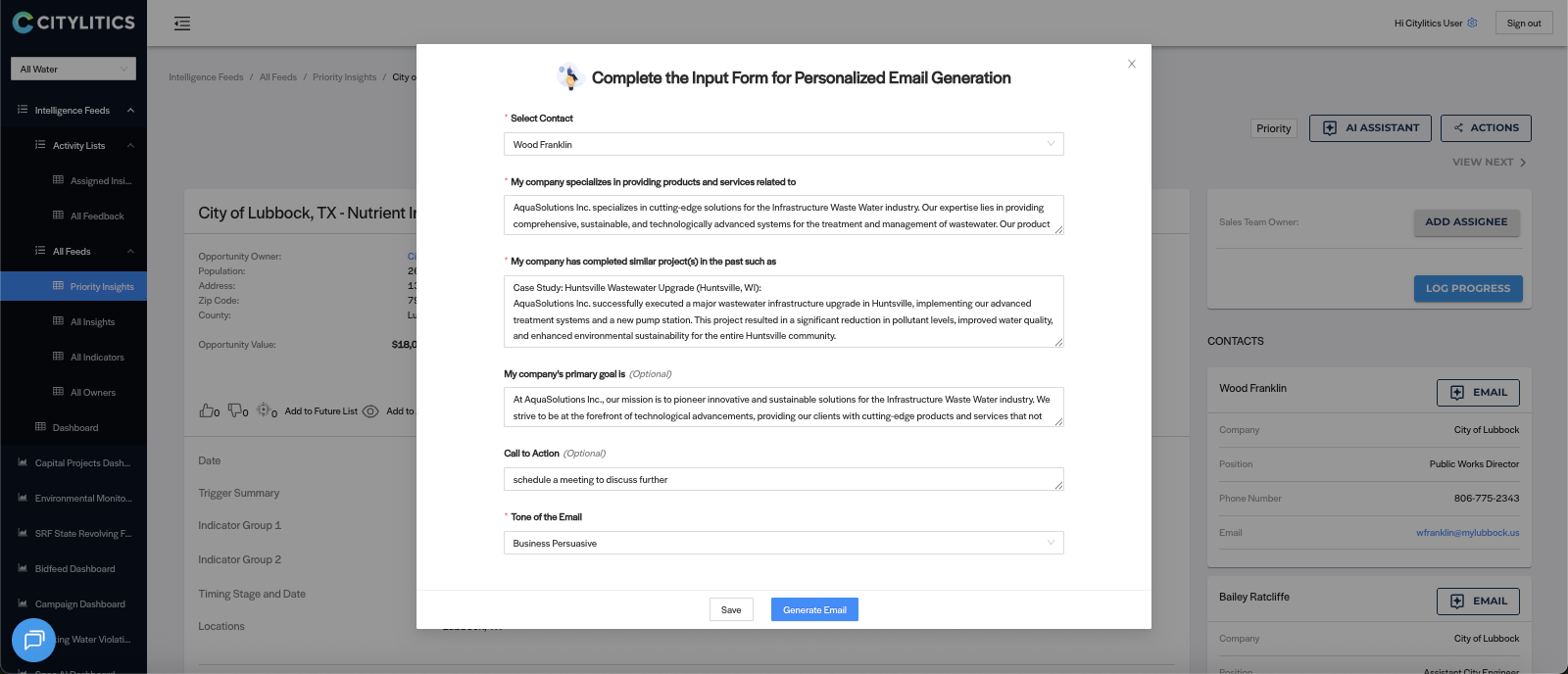
The form includes:
Required Inputs
Select Contact
A dropdown allows you to choose one of the opportunity linked contacts as the email recipient.
Company Specialization
A text box to describe your company’s expertise and key details that should be highlighted in the email.
Past Projects / Case Studies
A text box to list relevant work your company has completed in the opportunity’s market.
If multiple case studies are provided, the AI will select the most applicable one when crafting the email.
Optional Inputs
Your Company’s Primary Goal
Add your company’s broader mission or vision to make the email more engaging.
Call to Action
Specify the next step you want the recipient to take.
Tone of Email
Choose from predefined tone options to shape the style of the email.
The form comes pre-populated with default presets for speed, but all fields are fully editable so you can tailor the message to match your company’s positioning.
Once the inputs are complete, click Generate Email.
You can also Save Defaults for future use. These saved defaults apply only to your user profile and are not shared with other team members.
Step 4: Review the AI-Generated Email Recommendation
The AI assistant will generate a customized email based on provided inputs
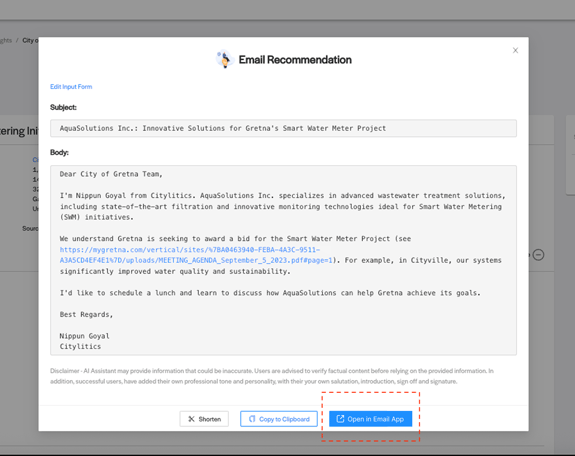
At this stage, you may:
-
Review the email
-
Copy to clipboard
-
Send via email app
-
Shorten (optional output refinement tool)
Step 5 (Optional): Edit the Email Output for Personalization
If you wish to add your personal touch — such as adjusting phrasing, adding context, or aligning to your company’s voice — you can do it in the editing view.
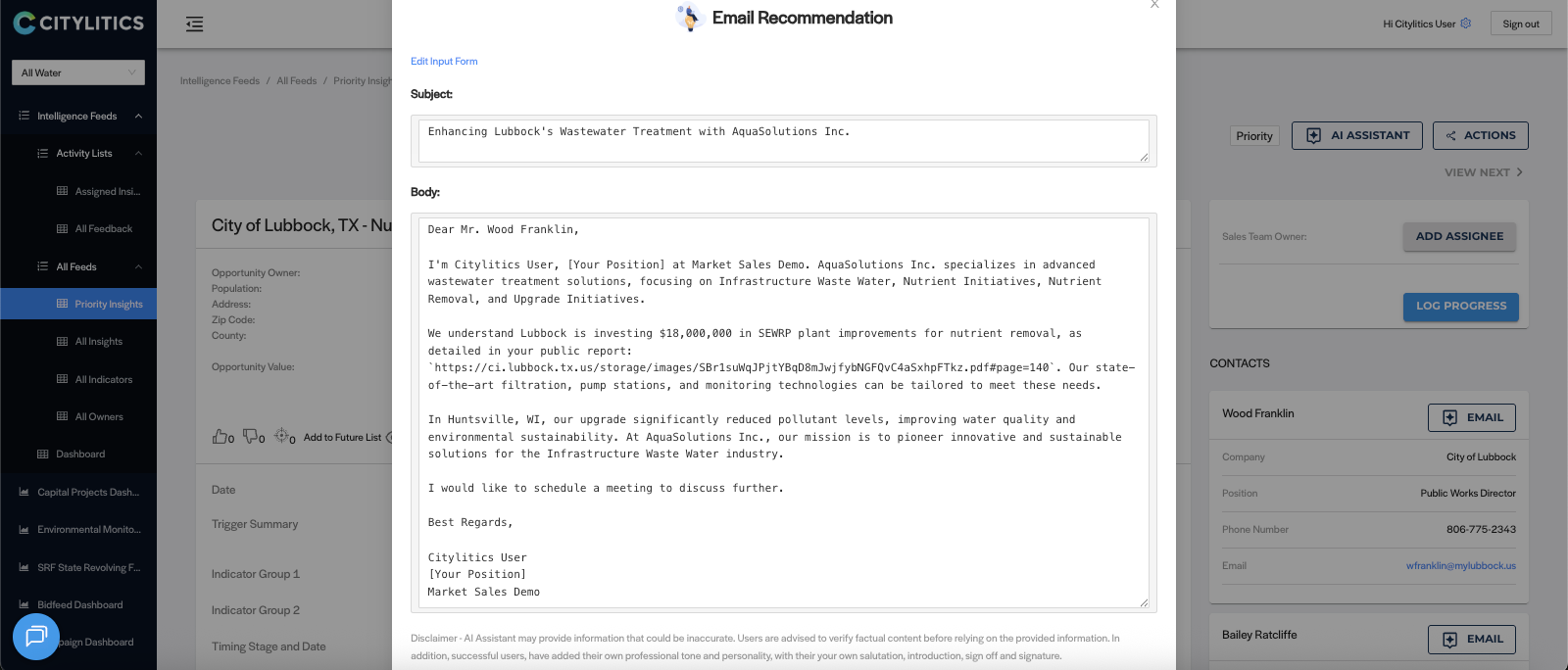
This edit window allows you to finalize the message before sending.
Step 6: Send Using Your Desktop Email Client
When ready, click Open In Email App.
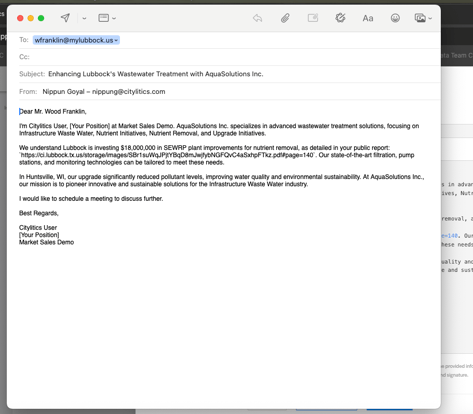
Your default email application (Outlook, Apple Mail, etc.) will automatically open with:
-
The email body pre-filled
-
The selected recipient added
-
Your “From” field set to your email
You can review or add any final touches before sending.