
This guide will walk you through the simple steps of accessing your account using your existing Microsoft credentials. This feature, known as Single Sign-On (SSO), allows you to use your company's Microsoft/Office 365 login to securely access our application, so you have one less password to remember!
Based on your Organizations requirements, Microsoft Single Sign-On (SSO) may be:
-
Optional: You have the ability to login to Citylitics by entering your email and password in the standard fields, or by logging in through Microsoft Single Sign-On (SSO)
-
Required: Your organization has mandated that your team must log into Citylitics using Microsoft Single Sign-On (SSO) only. You may not login to Citylitics by entering your email and password in the standard fields.
-
Not Applicable: You do not have a Microsoft/Office 365 login, you have the ability to login to Citylitics by entering your email and password in the standard fields.
What is Microsoft Single Sign-On (SSO)?
Single Sign-On (SSO) is an authentication method that allows you to sign in to multiple, independent software systems (like ours!) using a single set of login credentials. For you, this means:
-
One less password: No need to create and remember a new, unique password for our service.
-
Enhanced Security: Your login is protected by your organization's security policies (like multi-factor authentication, if enabled).
-
Quick Access: Faster and easier sign-in process.
How to Sign In
Follow these steps to sign in using your Microsoft account.
Step 1: Navigate to the Citylitics Login Page
-
Go to our Citylitics login page: https://app.citylitics.com/login
-
Look for the designated Sign In with Microsoft option.
Step 2: Select the Microsoft Single Sign-On (SSO) Option
On the Citylitics Login Page page - you may enter your email and password in the standard fields, or if you wish to login using Microsoft Single Sign-On (SSO) instead look for a button labeled:
-
Sign in with Microsoft

Step 3: One-time two factor authentication
-
Upon your first time clicking Sign in with Microsoft, you will be required to provide a one-time two factor authentication code.
-
An email containing this code will be sent to your inbox.
-
Copy this code, paste it into the one-time code field. Click sign in


Step 4: Microsoft Redirect and Authentication
-
Clicking the button Sign in with Microsoft Button will redirect you to the Microsoft sign-in page.
-
If you are already signed in to your company's Microsoft account (e.g., Outlook, Teams) in your browser, you may select your account

-
If you are not currently signed in, you will be prompted to enter your:
-
Work Email Address:
-
Microsoft Password
-

If this is your first time Signing in to the Citylitics Platform using Microsoft Single Sign-On (SSO), you may see a Permissions Requested / Approval Required modal
-
If you see a screen titled "Permissions requested" or "Approval required" after entering your Microsoft credentials, it means the Citylitics Platform needs permission to access basic profile information (like your name and email) from your Microsoft account to complete the sign-in.
The steps you need to take depend on the specific message you see:
If you see the "Permissions requested" screen:
-
This screen appears when the requested permissions can be granted by an individual user (like yourself).
-
Review the Permissions : Carefully read the permissions the app is requesting (e.g., "Sign you in and read your profile").
-
Select your Choice: If you are comfortable granting access, select Accept. This will instantly log you into the Citylitics Platform. If you choose Cancel, you will be redirected to the Microsft Login Page. From here you can click back within your browser to view the Cityltics Login Page. You may enter your email and password in the standard fields and access the Cityltics Platform.

If you see the "Approval required" screen:
-
This screen appears when the Citylitics Platform is requesting permissions that only an IT Administrator can approve for the entire organization.
-
Review the Message: The message will typically state: "Need admin approval" or "You can't grant access because your organization has disabled user consent."
-
What to Do: You have a few options, depending on your organization's setup:
-
Option A: Request Approval: If you see a text box to "Enter justification for requesting this app" and a Request approval button: * Type a brief reason (e.g., "Need this app for my team's workflows"). * Select Request approval. * The request is sent to your IT admin, and you must wait for them to approve it before you can sign in using Microsoft Single Sign on (SSO).
-
Option B: Contact IT: If you do not see a request button, or if your request is denied: * Contact your internal IT Help Desk or System Administrator and ask them to grant Admin Consent for the application named Citylitics Platform in Azure Active Directory (Microsoft Entra ID)
-
Option C: Reach out to your Cityltics CSM: To troubleshoot with your IT department to enable access to use Microsoft Single Sign On (SSO).
-
In the meantime, to continue accessing your Citytlitics account: you can navigate back to the Citylitics Login Page and enter your email and password in the standard fields and access the Cityltics Platform.

If your organization uses Multi-Factor Authentication (MFA), you may be prompted to complete the second verification step (e.g., using the Microsoft Authenticator App, a text message code, etc.).
-
The message "Let's keep your account secure" means your organization requires you to add another method (like the Microsoft Authenticator App or a phone number) to verify your identity during sign-in and for account recovery.
For more information please visit this Microsoft Support Article: Verifying your identity when signing in - Microsoft Support

Step 4: Microsoft Redirect and Authentication
-
Clicking the button Sign in with Microsoft Button will redirect you to the Microsoft sign-in page.
-
If you are already signed in to your company's Microsoft account (e.g., Outlook, Teams) in your browser, you may select your account
If this is your first time Signing in to the Citylitics Platform using Microsoft Single Sign-On (SSO), you may see a Permissions Requested / Approval Required modal
-
If you see a screen titled "Permissions requested" or "Approval required" after entering your Microsoft credentials, it means the Citylitics Platform needs permission to access basic profile information (like your name and email) from your Microsoft account to complete the sign-in.
The steps you need to take depend on the specific message you see:
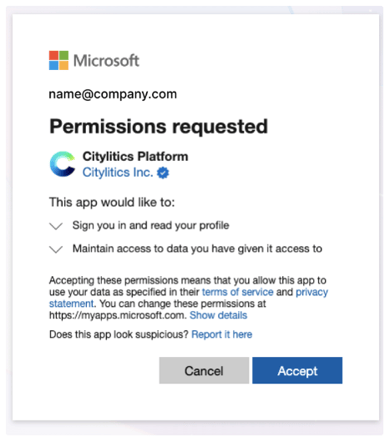
If you see the "Permissions requested" screen:
-
This screen appears when the requested permissions can be granted by an individual user (like yourself).
-
Review the Permissions : Carefully read the permissions the app is requesting (e.g., "Sign you in and read your profile").
-
Select your Choice: If you are comfortable granting access, select Accept. This will instantly log you into the Citylitics Platform. If you choose Cancel, you will be redirected to the Microsft Login Page. From here you can click back within your browser to view the Cityltics Login Page. You may enter your email and password in the standard fields and access the Cityltics Platform.
If you see the "Approval required" screen:
-
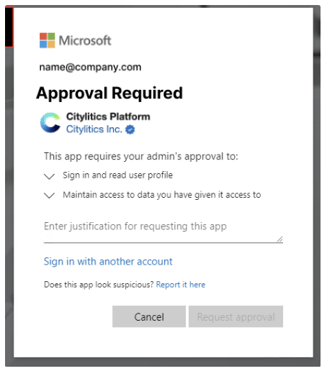
This screen appears when the Citylitics Platform is requesting permissions that only an IT Administrator can approve for the entire organization.
-
Review the Message: The message will typically state: "Need admin approval" or "You can't grant access because your organization has disabled user consent."
-
What to Do: You have a few options, depending on your organization's setup:
-
Option A: Request Approval: If you see a text box to "Enter justification for requesting this app" and a Request approval button: * Type a brief reason (e.g., "Need this app for my team's workflows"). * Select Request approval. * The request is sent to your IT admin, and you must wait for them to approve it before you can sign in using Microsoft Single Sign on (SSO).
-
Option B: Contact IT: If you do not see a request button, or if your request is denied: * Contact your internal IT Help Desk or System Administrator and ask them to grant Admin Consent for the application named Citylitics Platform in Azure Active Directory (Microsoft Entra ID)
-
Option C: Reach out to your Cityltics CSM: To troubleshoot with your IT department to enable access to use Microsoft Single Sign On (SSO).
-
In the meantime, to continue accessing your Citytlitics account: you can navigate back to the Citylitics Login Page and enter your email and password in the standard fields and access the Cityltics Platform.
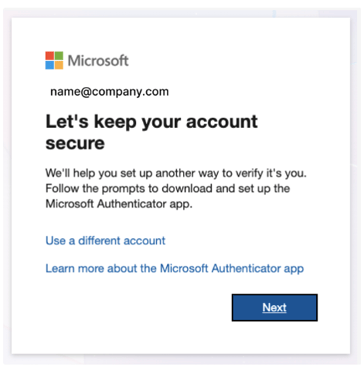
If your organization uses Multi-Factor Authentication (MFA), you may be prompted to complete the second verification step (e.g., using the Microsoft Authenticator App, a text message code, etc.).
-
The message "Let's keep your account secure" means your organization requires you to add another method (like the Microsoft Authenticator App or a phone number) to verify your identity during sign-in and for account recovery.
For more information please visit this Microsoft Support Article: Verifying your identity when signing in - Microsoft Support
Step 5: Access Granted!
-
After successfully authenticating with Microsoft, you will be automatically logged into the Citylitics Platform