Procurement Feeds (P-Feeds) Guide
What is Procurement Feeds?
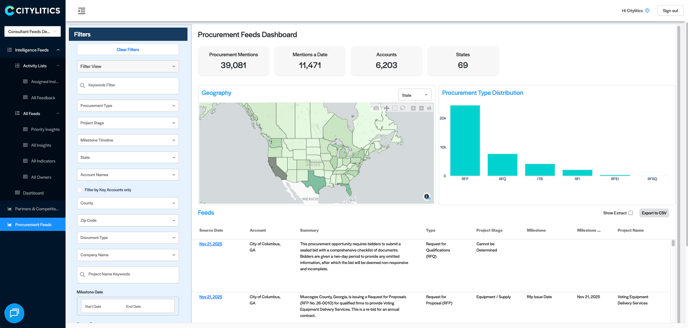
The Procurement Feeds (P-Feeds) dashboard provides signal-focused intelligence designed to identify early or active indications of bidding activity.
It answers the critical question: “What’s about to go out for bid?”
While other tools might track long-term capital plans years in advance, P-Feeds focuses on the Immediate to Short-term horizon. It bridges the gap between planning intelligence and live RFP actions, enabling you to detect when entities are preparing to issue RFPs, discussing procurement structures, or actively managing a bid.

Mastering the Filters Sidebar
The filters on the left-hand side allow you to narrow down thousands of mentions into actionable leads.
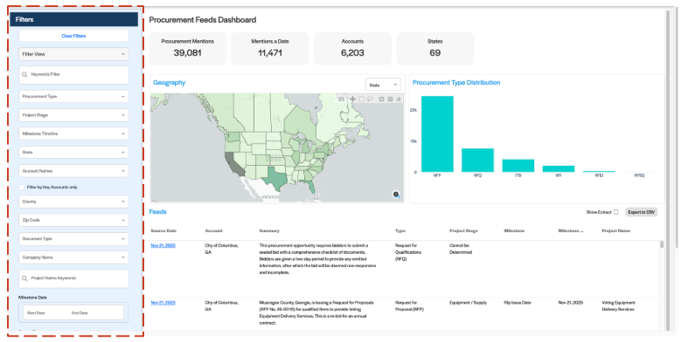
1. Keyword Filters
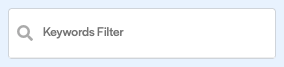
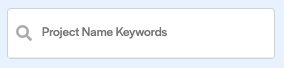
The Keywords Filter is the primary tool for refining your results. It operates in two ways:
Standard Search (Any Match)
By default, the filter uses "OR" logic. This means adding multiple keywords will broaden your search to include results that contain any one of your terms.
-
Example: If you enter "Voting Equipment"
-
Result: You will see documents that mention either "Voting" or "Equipment"
-
- Note: Include all relevant keyword variations unless a term is case-sensitive. For example, entering "pipe" will return results for both "Pipe" and "pipe."
Advanced Search (Specific Match)
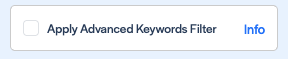
To enforce specific combinations or exclude terms, check the Apply Advanced Keywords Filter box at the bottom of the sidebar.
-
Note: Contact your Customer Success Manager (CSM) to configure these rules for you.
-
AND Logic: Finds results containing all specified terms (e.g., must have Voting AND Equipment).
-
NOT Logic: Excludes results containing specific words (e.g., find Paving but NOT Parking Lots).

2. Procurement & Stage Filters
-
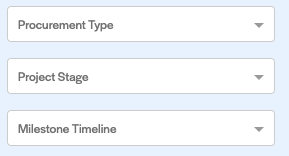
Procurement Type: Filter by the specific mode of procurement, such as RFP (Request for Proposal), RFQ (Request for Qualifications), ITB (Invitation to Bid), or RFI (Request for Information)
-
Project Stage: Narrow down documents based on the expected procurement phase, such as "Planning" or "Equipment / Supply."
-
Milestone Timeline: Filter by the current status of the bid (e.g., "Open," "Closed," or "Drafting").
3. Company Filters
-
Company Name: Use this dropdown to filter by specific organization names (e.g., "Jacobs," "AECOM") or to toggle between Partners and Competitors. This helps you isolate exactly who is being mentioned.
-png.png?width=284&height=53&name=Screenshot%202025-11-27%20at%202-40-40%E2%80%AFPM%20(1)-png.png)

4. Account Filters
-
Account Name: specific specific municipalities, utilities, or infrastructure owners (e.g., "City of Austin") to see who is active within their jurisdiction.
-
Filter by Key Accounts Only: This checkbox allows you to switch between a broad market view and a focused view of your priority clients.
-
Unchecked (Default): Displays mentions of your partners and competitors across the entire market.
-
Checked: Instantly filters the dashboard to show only data originating from your designated Key Accounts list.
-
Note: This is a configurable feature. Please contact your Customer Success Manager (CSM) if you would like to enable this tier and define your priority account list.
-
-png.png?width=302&height=99&name=Screenshot%202025-11-27%20at%202-37-25%E2%80%AFPM%20(1)-png.png)
5. Location Filters
-
Geography: Drill down into specific territories by filtering for State, Country and Zip Code. This allows you to focus your market intelligence on the exact regions where you operate.

-png.png?width=284&height=57&name=Screenshot%202025-11-27%20at%202-41-27%E2%80%AFPM%20(1)-png.png)
-png.png?width=278&height=110&name=Screenshot%202025-11-27%20at%202-36-14%E2%80%AFPM%20(1)-png.png)
6. Date Filters (Crucial distinction)
-
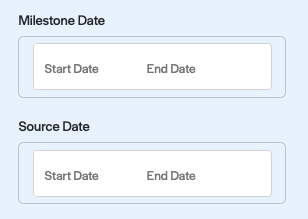
Milestone Date: Search for specific deadlines, such as when a Bid is Due or when Questions are Due.
-
Source Date: Search for when the intelligence was first published or found by our system.
7. Saving and Managing Views
Don't rebuild your search every time. Use these tools to save and maintain your market monitors.
-
Save As New Filter View: Once you have configured your keywords and filters, click this blue button to save the setup. You can give it a specific name.
-
My Filters: Access your saved configurations later using the dropdown menu at the top of the sidebar.
-
Edit Filter Views: Click the grey button to manage your saved list. This allows you to update, rename, or delete your existing filter views.
-
Update Selected Filter View: Use this button to apply changes to your existing view.


Dashboard Widgets & Visualizations
Score Cards
High-level metrics providing a snapshot of the current volume:
-
Procurement Mentions: Total volume of signals matching your search.
-
Accounts: The number of unique entities issuing these procurements.
-
States: Geographic spread of the opportunities.
Geography Map
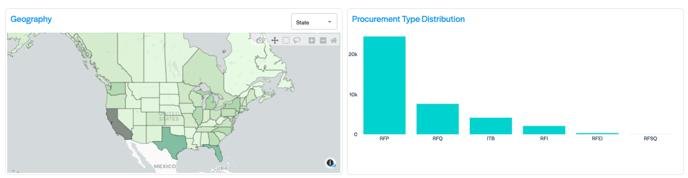
An interactive map showing the density of procurement activity. Use the tools in the top right of the map to select specific areas or toggle views.
Procurement Type Distribution
A bar chart that visualizes the method of procurement being used.
-
Visualizes: The ratio of RFPs vs. RFQs, ITBs, and RFIs.
-
Use Case: Helps you understand if the market is currently asking for pricing (Bids/ITBs) or qualifications (RFQs).

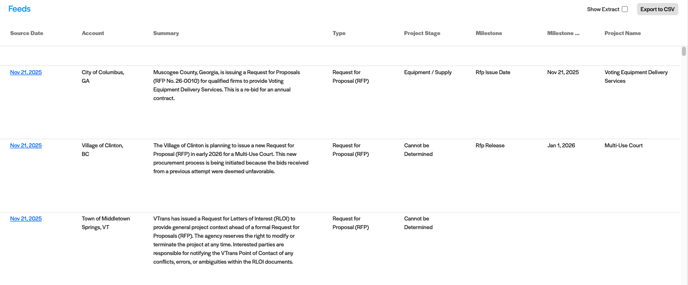
The Feeds Table
The detailed table at the bottom displays the specific opportunities found.
|
Column |
Description |
|
Source Date |
The date the intelligence was captured. |
|
Account |
The agency or municipality issuing the procurement (e.g., "City of Columbus"). |
|
Summary |
An AI-generated summary describing the scope of work (e.g., "Requires bidders to submit a sealed bid..."). |
|
Type |
The classification of the document (e.g., Request for Proposal). |
|
Project Stage |
The category of work (e.g., Equipment / Supply). |
|
Milestone |
The specific event triggered (e.g., "Rfp Issue Date"). |
|
Milestone Date |
The specific date associated with that event (e.g., Nov 21, 2025). |
|
Project Name |
The official title of the project or solicitation. |
Table Actions:
-
Show Extract: Toggle this to preview the specific text snippet from the document.
-
Export to CSV: Download your results to Excel for team sharing or CRM import.