
What is REX Radar?
- Your personal watchlist: Your Radar is a list of the opportunities you have engaged with. It builds itself as you work, so there's nothing to set up.
- Private to you: Your Radar does not appear on your colleagues' lists, and the Radar badge only shows for opportunities on your Radar.
- Always in your control: Add or remove any opportunity at any time. If you remove one, it stays removed.
- Opportunity Updates: When an opportunity on your Radar changes, you receive an update insight with a summary, the signals behind it, and links to the sources.
How to Use REX Radar: A Step-by-Step Walkthrough
Step 1: How Opportunities Get on Your Radar
An opportunity is added to your Radar automatically when you engage with it by doing any of the following:
- Like or Bullseye it
- Add it to any list
- Sync it to your CRM
- Generate a shareable PDF
- Draft an intro email
Opportunities you engaged with before launch have already been added, so your Radar is ready the first time you open it.
Step 2: Recognize the Radar Badge
Opportunities on your Radar display the Radar · REX AI badge:
- Insight tables: next to the opportunity name.
- Single Opportunity view: in the page header beside the opportunity title.
The badge only appears for opportunities on your own Radar, even if a teammate is tracking the same opportunity.
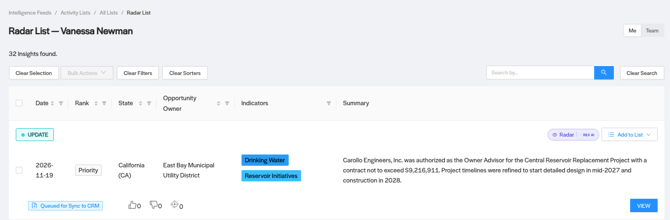
Step 3: Add or Remove Opportunities Manually
- Open the Add to List menu on any opportunity.
- Select Radar List to add it, or deselect it to remove it.
Removing an opportunity is permanent unless you add it back yourself. Future engagement will not re-add it automatically.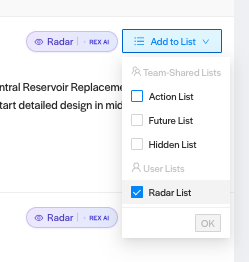
Step 4: View Your Radar
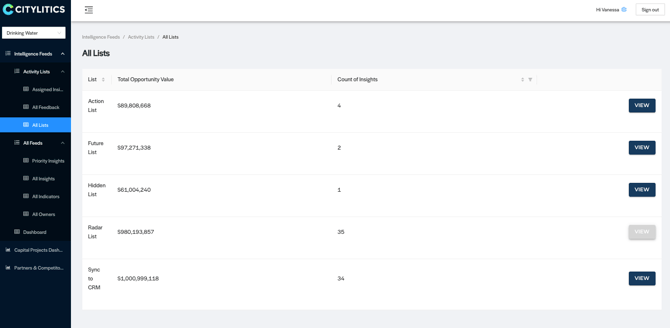
- Go to the All Lists page.
- Click the My Radar row, which shows the total number of opportunities you're tracking.
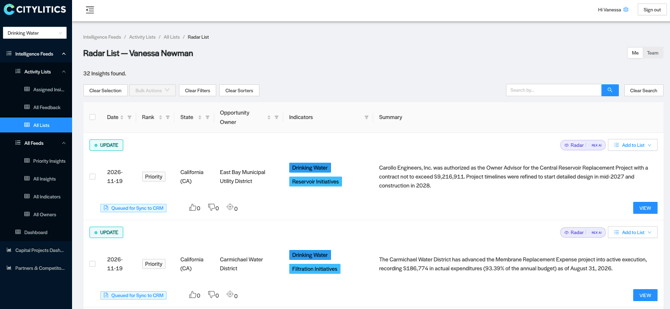
Step 5: Find Your Opportunity Updates
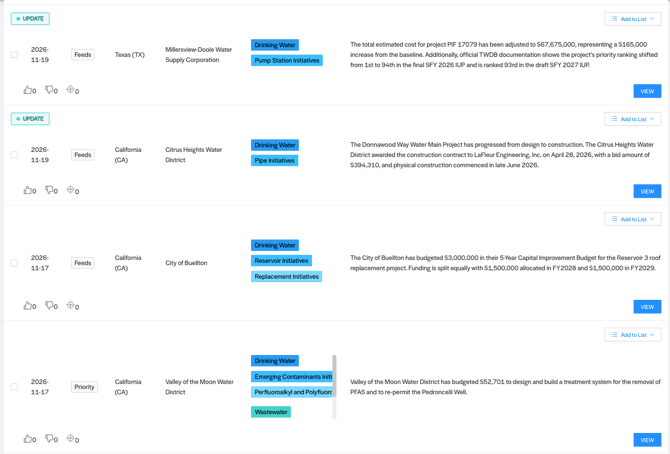
Insights are labelled by type, so you can tell a first-time insight apart from an update on an opportunity you're already tracking:
- Initial: the first insight on an opportunity.
- Update: new activity on an opportunity that already exists.
Look for the Update label in your insight tables and Priority Feed
Step 6: Read an Opportunity Update
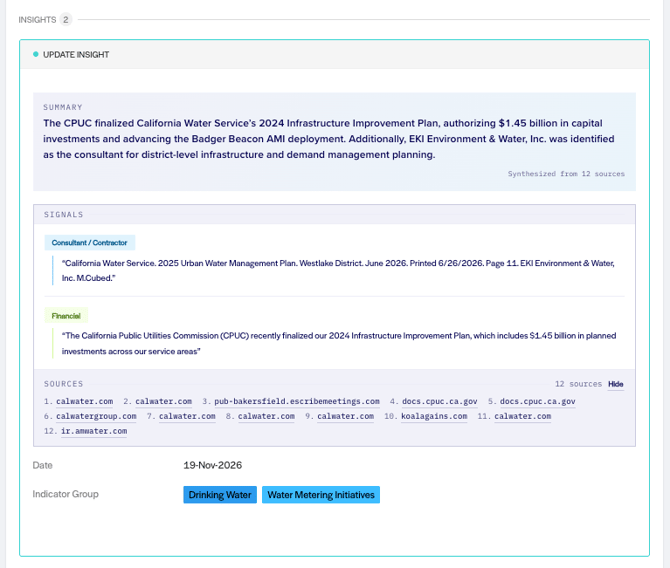
Open an update to see it on the Single Opportunity view. Each update has three parts:
- Summary: a short description of what changed on the opportunity.
- Signals: the specific details behind the update, grouped by topic, with the supporting excerpt from the source.
- Sources: links to the documents and pages the update was built from. Sources are collapsed by default; click to expand them and verify the original.
Standard fields such as indicator and date still appear below the update. Fields with no data are hidden.
Step 7 (Managers): See Your Team's Radar
Sales Managers and Directors see a Me / Team toggle at the top of the Radar page.
- Me: your personal Radar.
- Team: a roll-up of what your team is tracking. Each row shows which teammate is tracking the opportunity.
- Teammate totals: open a teammate's Radar to see how many opportunities they're tracking.
- Without feedback: see which teammates haven't yet given feedback on this month's updates.
Team views are read-only. You can't add to or remove from a teammate's Radar.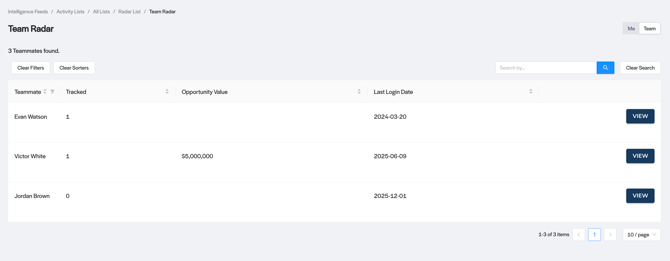
Step 8: Get Updates by Email
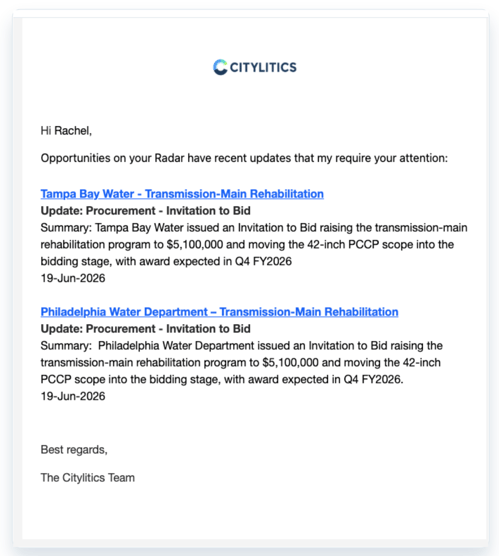
Automated email alerts send you a digest of updates on your Radar opportunities, daily or weekly. You only receive an email when there are updates. To turn on alerts or change your cadence, contact your Customer Success Manager.
Frequently Asked Questions (FAQ)
Can my colleagues see my Radar? No. Your Radar is private. Sales Managers and Directors can view a read-only roll-up of their team's Radar.
Why is an opportunity on my Radar that I didn't add? It was added automatically because you engaged with it (e.g., liked it, added it to a list, or synced it to your CRM). You can remove it at any time from the Add to List menu.
If I remove an opportunity, will it come back? No. Manual removals take priority over automatic adds. It only returns if you add it back yourself.
Why don't I see the Radar badge on an opportunity my teammate is tracking? The badge only reflects your own Radar, so it stays hidden unless the opportunity is also on yours.
What counts as an update? New, meaningful activity on an existing opportunity, such as a new approval, funding change, schedule change, or procurement step, backed by a source you can open and verify.
Where does the update information come from? From public sources such as council agendas, minutes, budgets, and procurement portals. Every update links to its sources so you can check the original.
How do I turn on email alerts? Contact your Customer Success Manager to enable alerts and choose a daily or weekly digest.