
What are the Fast Feedback Features?
In the fast-paced world of infrastructure sales, getting ahead means identifying opportunities before they become public RFPs. Our sales intelligence platform delivers these crucial early-stage insights. But to ensure these insights are truly actionable for your team, we've implemented "Fast Feedback Buttons."
These intuitive, one-click options are more than just simple reactions; they are a powerful feedback loop that helps you:
-
Refine your intelligence feed: Teach our AI what's most relevant to your business.
-
Streamline your workflow: Quickly categorize and prioritize leads.
-
Boost your team's efficiency: Focus on the insights that matter most.
-
Quantify your ROI: Help us demonstrate the tangible value our platform brings to your pipeline.
Let's explore what each Fast Feedback Button means and how to use it effectively:
|
Feedback Buttons Explained: |
Status: Active |
Status: Inactive |
|---|---|---|
|
Thumbs Up (Like) This insight is relevant and valuable to your team. It aligns with your target market, service offerings or strategic objectives. When to use it:
Impact: Our AI learns from your positive signals, improving the relevance and quality of future insights delivered to your dashboard. |
|
|
|
Thumbs Down (Dislike) This insight is not relevant or useful to your current priorities. It might be outside your geographic focus, industry niche, or ideal timing stage. When to use it:
Impact: This signals to our AI what not to prioritize for you, helping to prune your feed and reduce irrelevant content over time. You are also welcome to leave a note to provide additional context in the Log Progress section. This opportunity does not align with what you or your team are looking for, and you would not like to see opportunities like these in the future. |
 |
 |
|
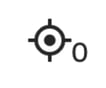
Bullseye This is a highly relevant, high-priority insight that represents a strong opportunity. It's a perfect fit for your capabilities and should be pursued actively. When to use it:
Impact: Designates top-tier opportunities for immediate attention and helps our system learn what constitutes a "perfect" fit for your business. |
 |
|


By consistently utilizing these Fast Feedback Buttons, you empower our platform to learn your unique preferences and deliver ever more precise, actionable early-stage sales intelligence, ultimately helping you drive more wins and accelerate your growth in the infrastructure industry.
Accessing Your Categorized Insights by Feedback
Once you've used the Fast Feedback Buttons to sort your early-stage insights, you'll want to easily retrieve those categorized leads to ensure no valuable opportunity is overlooked. Our platform offers two primary methods to access insights based on the feedback you or your team have provided.
Method 1: The "All Feedback" View
The "All Feedback" section provides a comprehensive, centralized hub for all insights that have received feedback across your organization.
-
Navigate: From the left-hand navigation menu, click on "All Feedback."
-
Explore: This page displays every insight that has been tagged with any of the Fast Feedback Buttons by any user in your account (e.g., Thumbs Up, Thumbs Down, Bullseye, Add to Action List, Add to Future List).
-
Filter & Refine: You can then use the available filters on this page (e.g., by Date, State or Indicators) to narrow down the list and find exactly what you're looking for.
Best for: Gaining a broad overview of all categorized insights, or if you need to see feedback left by other team members.
Method 2: Filtering on Your Dashboard
For a more personalized view focused on your assigned insights and specific feedback types, your Dashboard offers a powerful filtering capability.
***NOTE: this workflow will only apply if insights are automatically being assigned to you based on your territories or areas of interest. If you are unsure, reach out to your Customer Success Manager.
-
Go to Your Dashboard: Navigate to your primary Dashboard.
-
Filter by Assignee: Locate the "Assignee" filter and select your name. This will narrow the insights displayed to only those currently assigned to you.
-
Filter by Feedback Type: Next, locate the "Feedback" filter. Select the specific feedback you're interested in, such as:
-
"Like" (👍)
-
“Dislike” (👎)
-
"Bullseye" (🎯)
-
Best for: Quickly reviewing insights you've personally categorized and are responsible for, or insights that have been assigned to you.
By leveraging these two powerful methods, you can efficiently track and manage your prioritized insights, ensuring your team consistently follows up on the most promising early-stage opportunities.