
Use this filter to focus on high-value “Key Accounts” that your team has defined, so you can prioritize the outreach and build your sales pipeline.
What is the Key Accounts Filter?
Key Accounts are high-value accounts defined by your team, where you want to focus your efforts on building a pipeline of opportunities
The Key Accounts Filter lets you view opportunities only from your Key Accounts, quickly assess & act on them to ensure timely and focused outreach.
You can access the Key Account filters from the Intelligence Feed Dashboard view, All Owners view and the Assigned Insights view
|
Intelligence Feeds Dashboard View Owner Rank Filter |
All Owners View Rank Column Filter |
Assigned Insights View | Account Type filter |
| When you select Key Account in the Owner Rank filter, the Insights Details / opportunities table shows every opportunity associated with all of your Key Accounts. | In the All Owners view, setting the Account Type filter to view only Key Accounts shows each Key Account with an overview of total number of opportunity insights and total opportunity value. Along with the option to view all opportunity insights for that key account. | In the Assigned Insights view, after selecting the assignee to view the assigned insights. Setting the Account Type filter to view only Key Accounts shows only assigned opportunity insights from Key Accounts. Along with the option to view & evaluate each assigned opportunity insight. |
To access the Key Accounts filter from Intelligence Feed Dashboard:
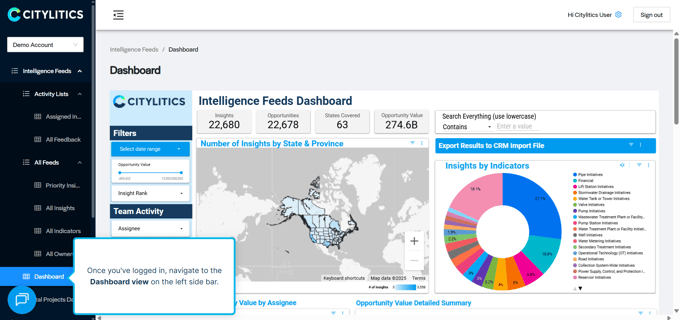
1. Navigate to the Intelligence Feeds Dashboard
Sign in to your Citylitics account.
From the left-hand navigation, under Intelligence Feeds, click on the Dashboard to open the Intelligence Feed dashboard view.
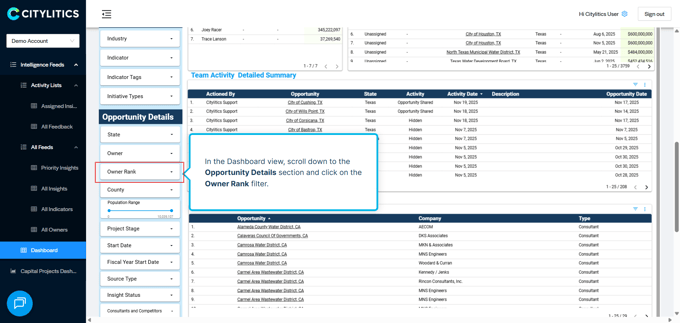
2. Navigate to the Owner Rank filter
Scroll down to the Opportunity Details section.
Under Opportunity Details, click on the Owner Rank filter for dropdown options to choose from.
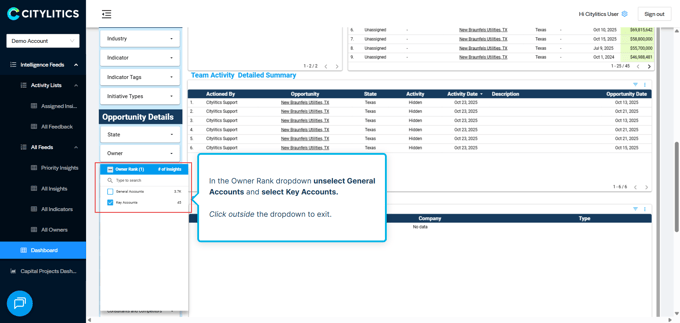
3. Choose Key Accounts from the Owner Rank filter
Unselect General Accounts by clicking on the checkbox and ensure Key Accounts is selected
Click outside the filter drop to exit and activate the filter..
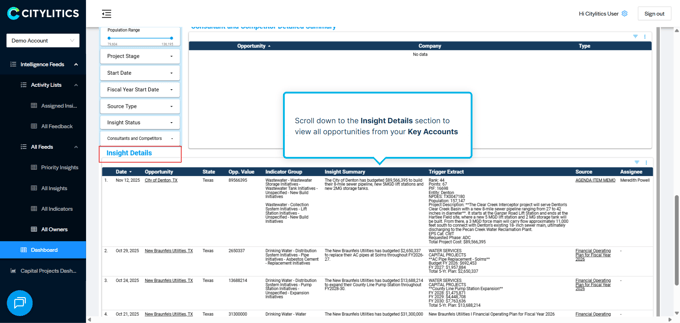
4. View the opportunities filtered by Key Accounts
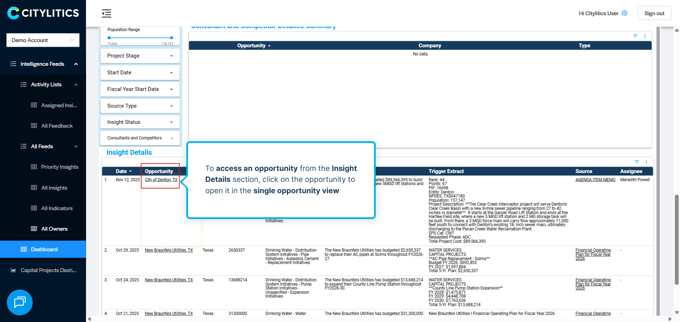
Scroll down to the Insight Details section to view all the opportunities filtered by Key Accounts.
5. Access the filtered opportunities in single opportunity view
To view your preferred opportunity in single opportunity view, click on the hyperlinked opportunity name in the opportunity column
To access the Key Accounts filter from All Owners view:
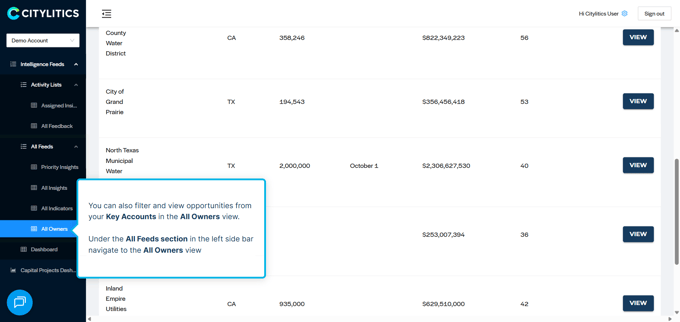
1. Navigate to the All Owners view
From the left-hand navigation, under Intelligence Feeds, click on the All Owners tab to open the All Owners view.
2. Filters Owners using the Rank filter
Click on the Filter icon in the Account Type column.
Select Key Accounts from the dropdown options and click OK to apply the filter.
.png?width=680&height=334&name=All%20Owners%20Filter%202%20(1).png)
3. Overview of filtered Key Accounts
Now the All Owners view lists only the Key Accounts along with the total number of opportunity insights under each key account.
.png?width=680&height=335&name=All%20Owners%20Filtered%20View%202%20(1).png)
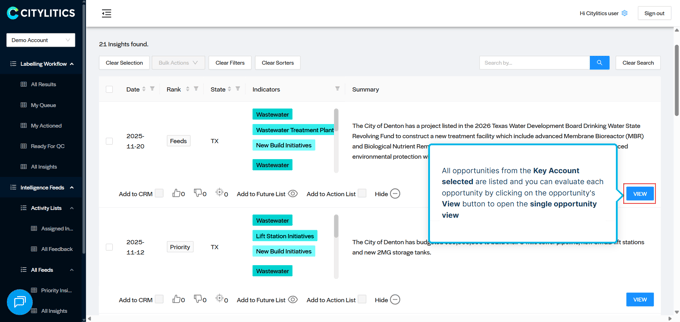
4. Access opportunity insights at the Key Account level
View the list of opportunities under each key account by clicking on the view button
.png?width=680&height=334&name=All%20owners%20view%202%20filters%20(1).png)
To filter Assigned Opportunity Insights by Key Accounts in the Assigned Insights table:
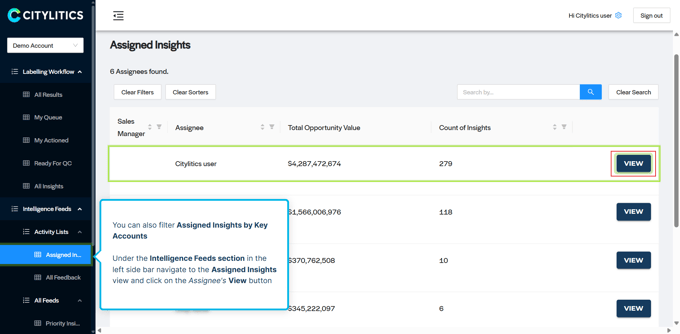
1. Navigate to the Assigned Insights view
From the left-hand navigation, under Intelligence Feeds, click on the Assigned Insights tab to open the Assigned Insights view
Choose the assignee and click on the respective assignee’s View button, to view the assigned insights
2. Filter Assigned Insights by Account Type
In the assigned insights table view, you can filter opportunity insights assigned to you by Account Type.
Click on the filter icon in the Account Type column and select Key Accounts from the dropdown options and click OK to apply the filter.
.png?width=680&height=335&name=Filter%20by%20account%20type%20(1).png)
3. Overview of filtered Key Accounts
Now the Assigned Insights table lists only the opportunity insights from Key Accounts.
Click on the individual opportunity insight’s view button to open it in the single opportunity view and evaluate for further action.
.png?width=680&height=335&name=View%20key%20account%20insights%20(1).png)
4. Reset the Assigned Insights view
You can reset the Assigned Insights view to show opportunity insights across all account type. Click on the Account Type column’s filter icon, select Reset and click OK to apply the filter.
.png?width=680&height=335&name=Reset%20assigned%20insights%20view%20(1).png)